Last Updated: May 2026 | By the Home & Style Essentials Team
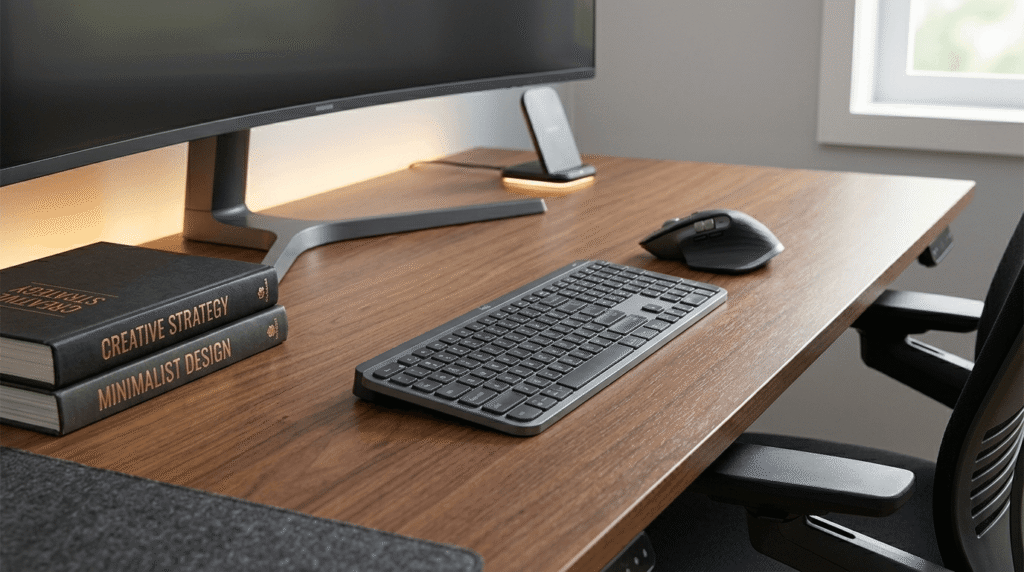
Let’s be honest, searching for the best home office setup 2026 can be challenging, as mostly home offices are an afterthought. A folding table shoved in a corner, a dining chair that wrecks your back by noon, and lighting so bad you’re practically squinting through your Zoom calls.
But here’s the thing: your workspace directly shapes how you think, feel, and perform. Research has consistently shown that a well-designed, ergonomic home office doesn’t just look good, it reduces fatigue, sharpens focus, and can meaningfully boost daily output.
In 2026, working from home isn’t a temporary arrangement. It’s a lifestyle. And it deserves a proper setup.
Whether you’re starting from a completely blank room or just upgrading what you already have, this guide is your roadmap to building the best home office setup in 2026 — one that’s productive, stylish, and built around you. We’ve done the research, tested the products, and pulled together everything you need in one place.
Let’s build something great.
Quick Comparison: Best Home Office Products for 2026
| Product | Category | Rating | Best For | Price Range |
|---|---|---|---|---|
| Ergonomic Office Chair | Ergonomic Chair | ⭐ 4.7/5 | All-day sitters | $239.99 |
| FlexiSpot E7 Pro Standing Desk | Sit-Stand Desk | ⭐ 4.8/5 | Health-conscious workers | $109.99 |
| BenQ ScreenBar Halo | Monitor Light Bar | ⭐ 4.6/5 | Eye strain sufferers | $139.00 |
| Logitech MX Master 3S | Wireless Mouse | ⭐ 4.8/5 | Power users & creatives | $74.99 |
| Keychron K8 Pro | Mechanical Keyboard | ⭐ 4.7/5 | Typists & developers | $40 |
| Elgato Key Light Air | Studio Lighting | ⭐ 4.6/5 | Video calls & content creators | $179.99 |
| Anker PowerExpand 13-in-1 Hub | USB-C Hub & Dock | ⭐ 4.5/5 | MacBook & laptop users | $149.99 |
Why Your Home Office Setup Matters More Than Ever in 2026
Before we dive into product picks regarding the best home office setup 2026, let’s talk about what makes a WFH setup truly effective in 2026.
The modern remote worker faces a unique set of challenges: blurred work-life boundaries, video call fatigue, posture problems from suboptimal furniture, and the constant temptation to work from the couch. The solution isn’t discipline alone, it’s environment design.
A purpose-built home office signals to your brain: this is where work happens. That psychological shift alone is worth the investment. Add ergonomic support, proper lighting, and a clean aesthetic, and you’ve created a space that competes with (and often beats) any corporate office.
The best home office setup for 2026 balances three pillars:
- Ergonomics: Protecting your body during long work sessions
- Functionality: Having the right tools without the clutter
- Aesthetics: A space you actually enjoy being in
Pro Tip: You don’t need to upgrade everything at once. Start with your chair and desk — they have the highest impact on your health and productivity. Layer in the rest over time. For more home styling inspiration, explore Home & Style Essentials for curated picks across every room.
The 7 Best Home Office Products for 2026 (Reviewed)
1. Ergonomic Office Chair, Mesh Computer Desk Chairs with Adjustable Lumbar Support
The best home office setup starts from the ground up, with where you sit.
If you’re spending 6–10 hours a day at a desk, a $50 chair is a false economy. Back pain, neck stiffness, and poor posture are productivity killers that compound over time. The Ergonomic Office Chair, is the answer for serious remote workers who need all-day support without sacrificing style.
Key Features
- Full lumbar support with adjustable depth and height.
- Mesh back with breathable, flexible material.
- 11-point adjustability (seat height, tilt, armrests, headrest, backrest).
- Weight capacity: 300 lbs.
- Available in multiple colors to match any desk aesthetic.
Real-World Benefits
Unlike budget chairs that feel supportive for the first hour and terrible by hour four, the ErgoChair Pro+ maintains consistent lumbar engagement throughout the day. The mesh back prevents the overheating that plagues foam-padded chairs, a genuine quality-of-life upgrade during summer months or in warmer climates.
The headrest is independently adjustable, which is rarer than you’d think at this price point, and makes a huge difference for those who tend to lean back during calls or while reading.
Pros & Cons
| ✔ Pros | ❌ Cons |
|---|---|
| ✔ Exceptional lumbar and spinal support. | ❌ Assembly takes 30–45 minutes. |
| ✔ Highly breathable mesh back, no sweaty back. | ❌ Premium price point. |
| ✔ Extensive adjustability for different body types. | ❌ Not ideal for very short users under 5’2″ without seat depth adjustment. |
| ✔ Aesthetically modern, looks great on camera. |
Ideal For
Anyone who works from home full-time and has ever experienced lower back pain, neck tension, or general fatigue by midday.
Check the latest price and reviews on Amazon 👇
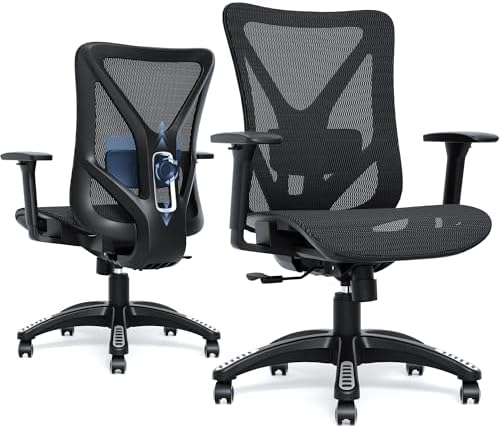
- 【Adjustable Lumbar Support】- The lumbar support of MOLENTS office chair can be adjusted up and down, forward and backwar…
- 【Adjustable 3D Armrests】- MOLENTS ergonomic office chair with 3D adjustable armrests offer tailored support for your arm…
- 【Breathable and Comfortable Mesh Office Chair】- This computer chair is crafted from premium breathable and high elastic …
2. FlexiSpot E7 Pro Standing Desk, Best Sit-Stand Desk for Home Offices
Sitting is the new smoking, and the FlexiSpot E7 Pro is your antidote.
Height-adjustable desks have moved from “nice to have” to essential for anyone serious about their long-term health and energy levels during the workday. The FlexiSpot E7 Pro sits at the top of the category for a reason: it’s rock solid, whisper quiet, and built to last.
Key Features
- Dual motor lifting system (whisper quiet, < 45 dB).
- Height range: 22.8″ – 48.4″ (accommodates sitting and standing for most heights).
- Weight capacity: 355 lbs.
- Anti-collision detection, stops and reverses if it hits an obstacle.
- LED touchpad with 4 memory presets.
- Available in multiple desktop sizes and finishes.
Real-World Benefits
The four memory presets mean transitioning between sitting and standing is a one-button affair, no adjusting, no guessing. Set your ideal sitting height, your ideal standing height, and switch throughout the day in seconds.
The anti-collision feature is genuinely useful if you have pets or children, the desk won’t bulldoze through whatever’s in its path.
Stability-wise, the E7 Pro barely wobbles at full extension, which is the critical differentiator between mid-range and premium desks. Typing on a wobbly standing desk at full height is miserable. This one doesn’t have that problem.
Pros & Cons
| ✔ Pros | ❌ Cons |
|---|---|
| ✔ Exceptional stability even at maximum height. | ❌ Heavier to assemble, a second pair of hands helps. |
| ✔ Very quiet dual-motor system. | ❌ Premium price vs. single-motor alternatives. |
| ✔ Memory presets make sit-stand transitions effortless. | ❌ Desktop finish can show fingerprints on lighter colors |
| ✔ Generous desktop size options. |
Ideal For
Health-conscious remote workers, those with back or hip issues, and anyone who wants to build healthier work habits without sacrificing desk space or aesthetics.
Check the latest price and reviews on Amazon 👇
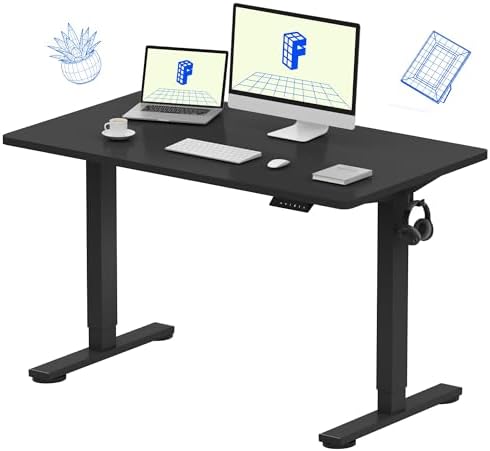
- ONE-PIECE. ZERO WOBBLE: A seamless, rock-solid desktop built for home offices, creative studios, and designers running m…
- SPACIOUS WORKSPACE FOR PRODUCTIVITY: Room for laptops, monitors, and accessories, giving writers, coders, or content cre…
- HEAVY-DUTY STABILITY & STRENGTH: Supports up to 176 lbs, giving office workers, architects, and gamers a steady, secure …
3. BenQ ScreenBar Halo, Best Monitor Light Bar for Eye Comfort
Eye strain is the silent productivity killer. This fixes it.
Most people either work with harsh overhead lighting, or they’re hunched in front of a glowing screen in a dim room — both of which cause eye strain and fatigue. The BenQ ScreenBar Halo is a cleverly engineered monitor light bar that solves this with precision.
Key Features
- Front light for task illumination + rear halo glow for ambient bias lighting.
- Auto-dimming sensor adjusts brightness based on ambient light.
- No screen glare design — light is directed at your desk, not your eyes.
- Touch-sensitive control panel with dimming wheel.
- USB-powered (no extra cable clutter).
- Color temperature range: 2700K–6500K.
Real-World Benefits
The dual-light design is what sets the Halo apart from ordinary monitor lights. The front beam lights your desk and keyboard cleanly, while the rear halo creates a soft ambient glow behind the monitor. This reduces the contrast between your bright screen and the dark wall behind it, which is exactly what causes eye strain after hours of screen time.
The auto-dimming feature is subtle but smart. Sit down at dawn and come back at midday and the light has adjusted quietly in the background.
If you’re frequently on video calls, the warm ambient light behind the screen also improves how you look on camera — a welcome bonus.
Pros & Cons
| ✔ Pros | ❌ Cons |
|---|---|
| ✔ Dramatically reduces eye strain during long sessions. | ❌ Pricier than standard monitor light bars. |
| ✔ Rear halo adds a premium, professional look to your setup. | ❌ Rear light effect is most visible on light-colored walls. |
| ✔ Auto-dimming sensor is genuinely useful. | ❌ Requires USB-A port or adapter. |
| ✔ Completely glare-free, no hotspots on your screen. |
Ideal For
Remote workers who log long screen hours, video call regulars who want better ambient lighting, and anyone building a premium-looking desk setup.
Related: Looking to style your entire workspace? Read our guide on home lighting and décor essentials for more inspiration.
Check the latest price and reviews on Amazon 👇

- BRIGHT AND ULTRAWIDE ILLUMINATION – ScreenBar Pro offers over 1000lx central brightness and a 500lx range within 33″x20″…
- HIGH COMPATIBILITY – Fits monitors 0.17″ – 2.56″ (0.43cm-6.5cm) thick and curvature 1000-1800R. Patented clamp design ac…
- MOTION SENSOR – The ultrasonic motion sensor detects movements within a 24″±4″ (60cm±10cm) diameter range, automatically…
4. Logitech MX Master 3S, Best Wireless Mouse for Productivity
The mouse you didn’t know you were missing.
This isn’t a flashy recommendation, it’s a practical one. The Logitech MX Master 3S is consistently the top-ranked productivity mouse on the market, and once you use it, you’ll understand why people refuse to go back to anything else.
Key Features
- MagSpeed electromagnetic scrolling (silent and ultra-fast).
- 8,000 DPI sensor with precise tracking on any surface (including glass).
- Ergonomic right-hand design with customizable thumb buttons.
- Multi-device connectivity (up to 3 devices via Bolt USB or Bluetooth).
- 70-day battery life on single charge.
- USB-C charging.
Real-World Benefits
The MagSpeed scroll wheel is genuinely one of the best product features you can experience in peripheral hardware. Flick it gently and it spins freely, letting you scroll through long documents or spreadsheets in seconds. Switch to click-to-click mode for precise control. You’ll toggle between the two modes constantly once you get used to it.
The app-specific custom buttons are a power-user feature that most people underestimate. Assign different shortcuts for Photoshop, VS Code, Excel, your mouse behaves differently in each app. It sounds minor. It adds up to hours saved per week.
Tracking on any surface, including glass desks, means no mousepad required, a meaningful perk for minimalist setups.
Pros & Cons
| ✔ Pros | ❌ Cons |
|---|---|
| ✔ Best-in-class scroll wheel, genuinely transforms workflow. | ❌ Right-handed only, left-handers need to look elsewhere. |
| ✔ App-specific button customization. | ❌ Logitech Options+ software required for full customization. |
| ✔ Long battery life with fast USB-C charging. | ❌ Larger form factor — not ideal for small hands. |
| ✔ Tracks on any surface. | |
| ✔ Silent clicks (great for quiet environments). |
Ideal For
Power users, writers, designers, developers, and anyone who spends significant time navigating documents, spreadsheets, or creative software.
Check the latest price and reviews on Amazon 👇
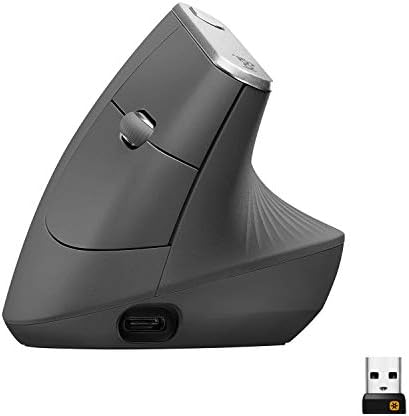
- NATURAL HANDSHAKE POSITION – MX Vertical’s natural handshake position reduces muscular activity by 10 percent compared t…
- 57° VERTICAL ANGLE FOR IMPROVED WRIST POSTURE – MX Vertical’s unique 57° vertical angle reduces the pressure on your wri…
- USER TESTED. ERGONOMIST-APPROVED. MX Vertical has been designed and tested with criteria set out by leading ergonomists …
5. Keychron K8 Pro, Best Mechanical Keyboard for Home Office
Typing should feel good. This keyboard makes it feel great.
There’s a reason mechanical keyboards have a cult following among developers, writers, and productivity enthusiasts. The tactile feedback makes typing faster, more accurate, and, weirdly, genuinely satisfying. The Keychron K8 Pro is the sweet spot between build quality, features, and price.
Key Features
- Hot-swappable switches (Gateron Red, Brown, or Blue, your choice).
- Wireless Bluetooth 5.1 or USB-C wired connection.
- RGB backlight with per-key customization via QMK/VIA.
- Compact tenkeyless (TKL) layout, saves significant desk space.
- Aluminum frame with a solid, premium feel.
- Mac and Windows compatible (keycaps and switches included for both).
Real-World Benefits
The hot-swap feature is a standout: you can pull out and replace individual switches without any soldering. Prefer light linear switches for quiet typing? Go Red. Want tactile feedback without the clicky noise? Brown. Want the full clicky experience and don’t mind your housemates knowing about it? Blue. You can change your mind later without buying a new keyboard.
The TKL layout removes the number pad to reclaim valuable desk space, your mouse sits closer, reducing shoulder strain from over-reaching.
Battery life on Bluetooth mode is solid, and the USB-C connection gives you a reliable wired fallback.
Pros & Cons
| ✔ Pros | ❌ Cons |
|---|---|
| ✔ Hot-swappable switches, customize without soldering. | ❌ No numpad, some users need one for data entry. |
| ✔ Premium aluminum build quality. | ❌ Clicky switches (Blue) may not be appropriate for shared spaces. |
| ✔ Both wireless and wired support. | ❌ RGB software setup has a learning curve. |
| ✔ Mac/Windows compatibility out of the box. | |
| ✔ Open-source firmware (QMK/VIA) for deep customization. |
Ideal For
Writers, developers, and daily typists who want a keyboard that improves their experience, not just their aesthetics.
Also see: Our complete home essentials checklist for every tool you need to work productively from home.
Check the latest price and reviews on Amazon 👇

- A tenkeyless layout (87-key) RGB backlight Gateron switch Bluetooth mechanical keyboard with CNC processed aluminum fram…
- With a unique Mac layout while compatible with Windows, the Keychron K8 has all essential multimedia and function keys y…
- Connect with up to 3 devices via Bluetooth and switch among them easily. With high reliable and broad compatibility Broa…
6. Elgato Key Light Air, Best Lighting for Video Calls & Remote Work
Look like you belong on a podcast. Even on a Tuesday morning Teams call.
Professional-grade lighting used to be reserved for studios and broadcast sets. The Elgato Key Light Air brings that same quality to your home office in a sleek, app-controlled panel that takes minutes to set up.
Key Features
- 1400 lumens output (adjustable).
- Color temperature: 2900K–7000K (warm to cool).
- Wi-Fi connected — controlled via Elgato Control Center app or Stream Deck.
- 80 LED light panels in a slim, space-saving design.
- Desk-mountable arm included.
- Compatible with HomeKit, Corsair iCUE.
Real-World Benefits
The difference between a webcam with bad lighting and one with the Key Light Air is night and day. Harsh overhead or backlit setups flatten your face, create shadows, and make you look washed out. A properly placed key light, slightly above and to the side of your monitor — creates a professional, flattering look that builds unconscious credibility on video calls.
The app control makes it simple to switch between a warm “comfortable working” mode and a cooler “I’m presenting now” mode without touching the light.
At 1400 lumens, it’s bright enough to eliminate the need for ambient ceiling lights during video calls, which gives you cleaner, more controlled lighting overall.
Pros & Cons
| ✔ Pros | ❌ Cons |
|---|---|
| ✔ Dramatic improvement in video call appearance. | ❌ Wi-Fi setup can occasionally be fussy on first connection. |
| ✔ Wide color temperature range, warm to daylight. | ❌ Single light; for best results, a two-light setup is ideal. |
| ✔ App and smart home integration. | ❌ Arm mount has limited horizontal reach. |
| ✔ Compact form factor vs. ring lights. | |
| ✔ Consistent, flicker-free output. |
Ideal For
Anyone who’s on video calls regularly, content creators who record from their home office, and professionals who want to make a strong visual impression remotely.
Check the latest price and reviews on Amazon 👇

- Wi-Fi Enabled: switch on/off and fine-tune light settings via the desktop app.
- 2800 Lumens: illuminate your entire workspace and dim down to a subtle glow.
- 2900 – 7000 K: change color temperature from sunset amber to arctic blue.
7. Anker PowerExpand 13-in-1 USB-C Hub, Best Docking Station for Laptop Users
One cable. Everything connected. Zero compromise.
Modern laptops, especially MacBook’s and Ultrabook’s, have traded ports for thinness. The Anker Power Expand 13-in-1 USB-C Hub gives it all back in a compact, well-built dock that transforms your laptop into a full desktop workstation.
Key Features
- 13 ports: 4K HDMI, 4K DisplayPort, 5 USB-A 3.0, 2 USB-C (one 85W PD charging), SD/MicroSD card slots, 3.5mm audio, Ethernet.
- 85W Power Delivery passthrough charging.
- 4K@60Hz video output (HDMI and DisplayPort simultaneously).
- Compact aluminum housing.
- Plug-and-play, no drivers required.
Real-World Benefits
The ability to connect your entire setup, dual monitors, keyboard, mouse, webcam, external drive, and Ethernet, with a single USB-C cable to your laptop is a workflow transformation. Sit down, plug in one cable, and you’re in full desktop mode. Pick up the laptop and go. That simplicity pays dividends every single day.
The 85W Power Delivery means your laptop charges simultaneously, so you’re not draining your battery while the hub is connected.
The inclusion of an Ethernet port is critical for anyone on video calls, Wi-Fi is convenient but Ethernet is stable. One droppy video call is all it takes to make you appreciate a wired connection.
Pros & Cons
| ✔ Pros | ❌ Cons |
|---|---|
| ✔ Massive port selection in a compact form. | ❌ Can run warm under heavy multi-display load. |
| ✔ Dual 4K video output capability. | ❌ USB-C cable length is short (hub needs to sit close to laptop). |
| ✔ 85W charging passthrough, charges laptop simultaneously. | ❌ Not all laptops support dual 4K output simultaneously. |
| ✔ Ethernet port included, wired stability. | |
| ✔ No drivers needed, plug and play. |
Ideal For
MacBook and laptop users who want a clean, single-cable desktop setup with full connectivity and no compromise on performance.
Explore more: See how to organize your home, office and kitchen accessories for a cleaner, distraction-free workspace.
Check the latest price and reviews on Amazon 👇
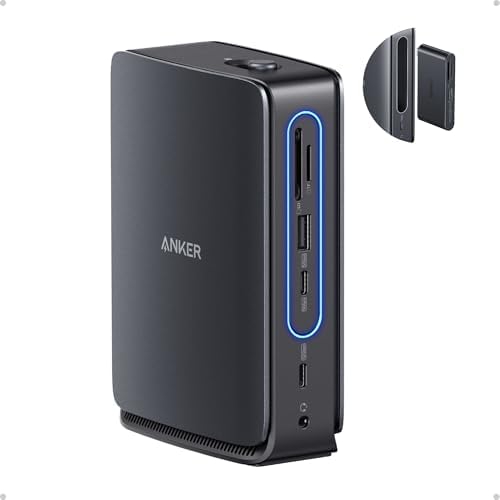
- 13-in-1 Dock with Detachable Hub: Switch effortlessly between full desktop setups and mobile work with a 13-in-1 dock fo…
- Flexible Display Options with Main Dock and Removable Hub: Set up a triple-screen workstation with the dock or connect o…
- All the Connections You Need: Features a USB-C upstream port, two USB-C data ports, three USB-A data ports, dual HDMI an…
Home Office Buying Guide: What to Consider Before You Build Your Setup
Before you start clicking “Add to Cart,” here are the key factors that will shape your decisions and make sure you get the best home office setup for your specific situation.
1. Your Primary Work Type
Are you mostly writing and communicating? Heavy on video calls? Running complex software? A writer needs a great keyboard and monitor. A developer needs screen real estate and processing power. A sales professional needs excellent lighting and audio. Define your work type first and prioritize accordingly.
2. Your Budget
You don’t need to spend a fortune all at once. Here’s a priority order based on impact:
- Chair, Protects your health first
- Desk, Sets the foundation for your entire setup
- Monitor, More screen real estate = more productivity
- Lighting, Both for wellbeing and video presence
- Peripherals, Mouse, keyboard, hub
Start where your biggest pain point is and build from there.
3. Your Space
Measure your room before buying anything. A 72″ desk looks stunning in a showroom and oppressive in a 10×10 room. Think about:
- Natural light sources — Position your monitor to avoid glare
- Cable management — Plan for it before your desk arrives
- Acoustics — Soft furnishings absorb echo; relevant if you’re on calls often
4. Ergonomic Fit
No chair or desk fits everyone the same way. Key ergonomic principles:
- Your monitor should be at or slightly below eye level
- Your elbows should rest at roughly 90 degrees when typing
- Your feet should rest flat on the floor (or a footrest)
- Your lower back should be supported in a slight natural curve
5. Aesthetic Cohesion
A well-designed workspace isn’t just about productivity, it’s about creating the best home office setup 2026 & enjoying where you spend your day. Choose a color palette (neutral base + one or two accent colors), consistent finishes (matte black, wood, white), and keep surfaces clear. A cluttered space creates a cluttered mind.

For home styling ideas that extend beyond your office, visit Home & Style Essentials, your go-to resource for curated home products and décor advice.
Frequently Asked Questions (FAQs)
What is the best home office setup 2026?
The best home office setup for 2026 combines an ergonomic chair (like the Autonomous ErgoChair Pro+), a height-adjustable standing desk (like the FlexiSpot E7 Pro), quality monitor lighting, and productivity-focused peripherals. The key is balancing ergonomics, functionality, and aesthetics to create a space that supports both your health and your work output.
How much should I spend on a best home office setup 2026?
A functional, ergonomic home office setup can be built for $500–$1,000, covering a quality chair, desk, and essential peripherals. A premium setup with standing desk, mechanical keyboard, quality lighting, and accessories typically runs $1,500–$3,000+. Prioritize your chair and desk first — they deliver the highest return on investment.
Is a standing desk worth it for working from home?
Yes — multiple studies have linked prolonged sitting to increased risk of back pain, cardiovascular issues, and energy slumps. A standing desk allows you to alternate between sitting and standing throughout the day, which improves circulation, reduces fatigue, and can meaningfully improve focus. The FlexiSpot E7 Pro is one of the best options available in 2026.
What lighting is best for a home office?
For a home office, you want a combination of ambient lighting (overall room illumination) and task lighting (directed at your work surface). A monitor light bar like the BenQ ScreenBar Halo reduces eye strain by illuminating your desk without creating screen glare. For video calls, a dedicated LED panel like the Elgato Key Light Air makes a professional difference.
Do I need a mechanical keyboard for my home office?
You don’t need one, but most people who make the switch don’t go back. Mechanical keyboards offer tactile feedback that makes typing more accurate and less fatiguing over long sessions. The Keychron K8 Pro is an excellent starting point — wireless, hot-swappable switches, and premium build quality at a reasonable price.
How do I improve my home office for video calls?
Three things make the biggest immediate impact on video call quality:
- Lighting, a key light or ring light facing you at slight angle
- Background, clean, intentional, or a solid wall
- Audio, a USB condenser microphone or quality headset
The Elgato Key Light Air handles lighting beautifully. For background, position yourself facing a window or a clean wall with minimal clutter.
What is the most important piece of home office furniture?
Your chair. You’ll spend more time sitting in it than using any other piece of equipment in your office. A poor chair causes progressive physical discomfort that compounds over months and years. An ergonomic chair like the Autonomous ErgoChair Pro+ is a direct investment in your health and long-term productivity.
How do I set up a home office in a small space?
In small spaces:
- Use a wall-mounted or corner desk to maximize floor space
- Choose a compact tenkeyless keyboard (no number pad)
- Use a monitor arm instead of a stand to clear desk surface
- Go vertical with shelving for storage
- Choose a monitor light bar over a desk lamp to avoid clutter
Minimalism works in your favor in small offices, every item should earn its place on the desk.
Final Verdict: Building the Best Home Office Setup 2026
Here’s the bottom line: the best home office setup for 2026 isn’t about having the most expensive gear — it’s about having the right gear, configured thoughtfully for how you actually work.
If you’re building from scratch, start with the FlexiSpot E7 Pro for your desk and the Autonomous ErgoChair Pro+ for your chair. These two investments will protect your health and underpin every other upgrade you make.
Layer in the BenQ ScreenBar Halo for eye comfort, the Logitech MX Master 3S for daily navigation, and the Keychron K8 Pro for a typing experience that actually improves your day.
If you’re on video calls constantly, add the Elgato Key Light Air and watch the difference it makes. And if you’re a laptop user, the Anker PowerExpand 13-in-1 Hub will simplify your entire setup with a single cable.
Your home office is where ideas become results. It deserves to be built properly.
Ready to create a home you love working in, and living in? Explore Home & Style Essentials for more curated product guides, décor inspiration, and practical tips for every room in your home.
Disclosure: This post contains affiliate links. If you purchase through our links, we may earn a small commission at no additional cost to you. We only recommend products we genuinely believe in.